R36S Console RetroArch Stuck Menu Issue
I recently treated myself to a new R36S portable console. This was an AliExpress special at only around £33, and it can emulate a bunch of consoles all the way up to the N64/Dreamcast/PS1/PSP level. It even comes with a very wide range of “sample” ROMs on the provided SD card.
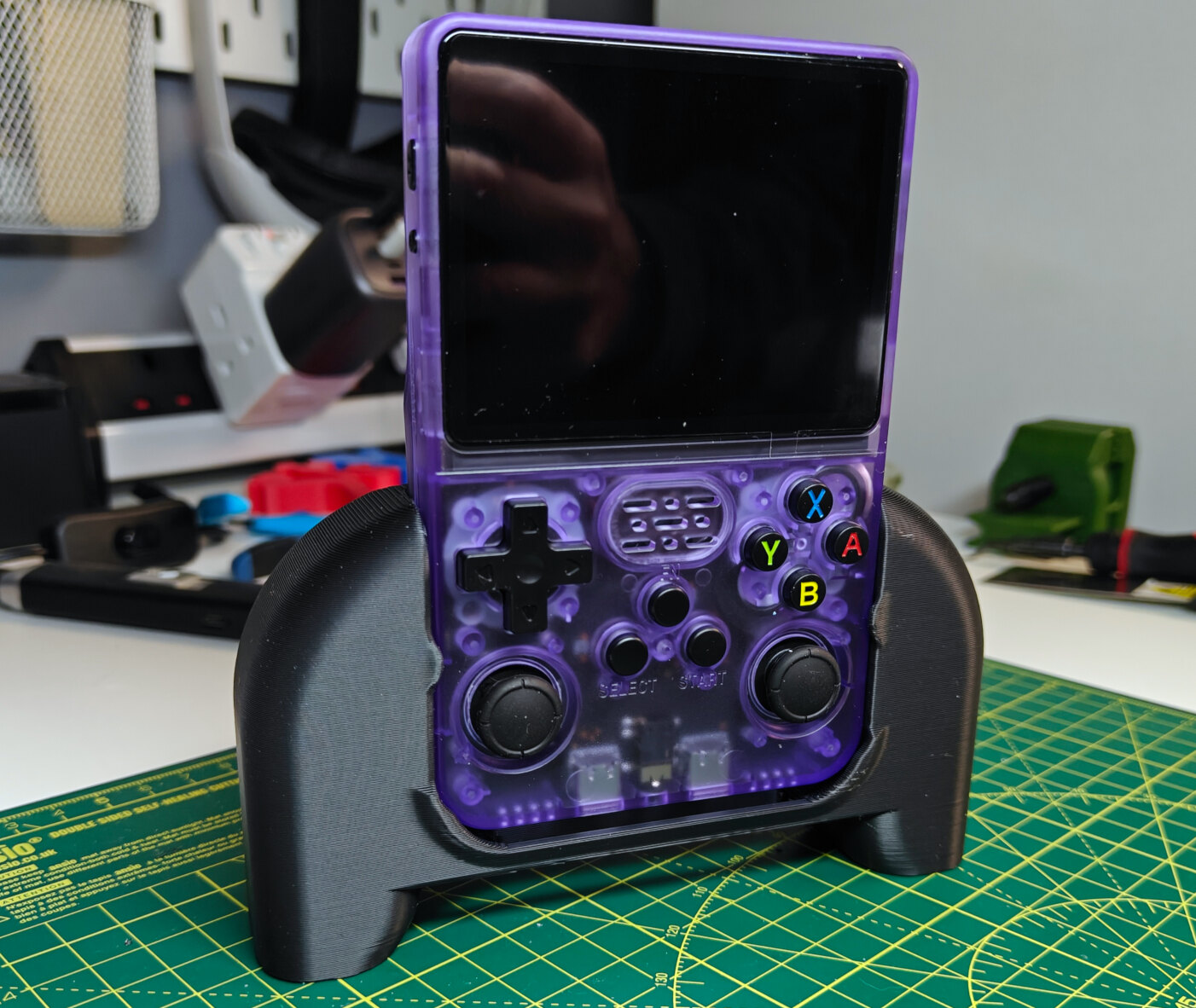
Note: The black grip shown here is something I 3D-printed from this model. By default the device is quite narrow for adult hands.
Doing a bit of research, I immediately backed up the stock micro SD card, since they are very low quality and prone to failure, then re-flashed a fresh MicroSD with “dArkOSRE-R36”. For context, my device was an R36S-V22 2024-12-18 (Panel 4 V22 board) which appeared to be a real device instead of a clone.
With that done, most things appeared to work great, apart from the in-game emulator menu used for save states, control mapping and many other useful things. I came to learn this was the RetroArch menu. I could open the menu, but the selector/cursor would be stuck on one item. Pressing the FN key, and then using the shoulder buttons allows some movement but without any accuracy. I tried re-flashing other operating systems, but the same issue occurred. I could not find any details of the same issue elsewhere.
When opening up RetroArch directly, I noticed the selector would be shaking a bit, until the analog stick was very slightly tilted left. It still wasn’t controllable, but this indicated a potential analog stick issue causing problems.
The Fix
I popped out the MicroSD card, inserted it into my PC, and mounted/accessed the “ROOT” partition (If on Windows, sorry, I’m not sure if you can gain easy access to this).
Then, find the home/ark/.config/retroarch/retroarch.cfg and home/ark/.config/retroarch32/retroarch.cfg files. You may need to show hidden files to see the .config folder. Within these find the following two options and update their values to be as shown:
input_analog_deadzone = "0.800000"
input_analog_sensitivity = "0.900000"
For me, the deadzone was set to 0, and the sensitivity was set to 1.5. Save your changes, after applying to both files. Safely eject the SD card, and re-insert into the console.
After this change, I was now able to navigate and use RetroArch menus!
Note: This may result in the analog sticks being less reactive. I’ve only really used the D-PAD in games so far, although the sticks do still work. But with access to the menus (or via following the above again) you may be able to tune or recalibrate these values.